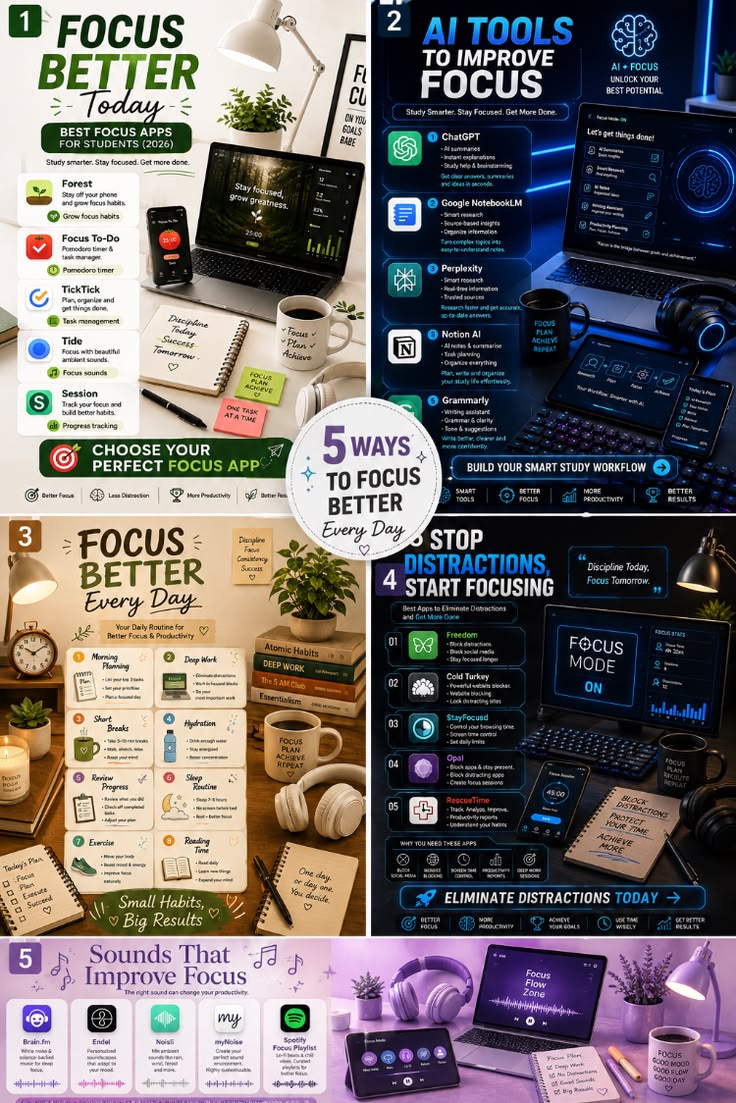
Step-by-Step Guide
Step 1: Select Your Core Productivity & Focus App
Choose one task runner: Select a primary app from the visual guide based on your workflow needs:
Forest: Gamified timers to stay off your mobile phone.
Focus To-Do: Pomodoro timer (25-minute intervals) combined with task management.
TickTick: Integrated task planning, calendar view, and habit tracking.
Tide: Ambient background sounds paired with focus timers.
Session: Real-time habit tracking and analytical progress reports.
Set up initial tasks: Load your task list at the start of each week.
Step 2: Build Your AI-Powered Study Workflow
Research & Conceptualization: Use ChatGPT or Perplexity to quickly summarize long texts, generate study guides, and get real-time answers.
Document Synthesis: Upload your research notes or PDFs into Google NotebookLM for source-grounded insights and structured summaries.
Organization: Store and format all structured notes in Notion AI.
Writing & Refinement: Run final drafts through Grammarly to refine tone, fix syntax errors, and improve clarity.
Step 3: Implement the 8-Habit Daily Focus Routine
Morning Planning: Identify your top 3 high-priority items before opening notifications or emails.
Deep Work Blocks: Work in 60- to 90-minute uninterrupted focus sessions on priority tasks.
Short Breaks: Take structured 5–10 minute breaks to stretch and reset your eyes between sessions.
Hydration: Keep a water bottle at your desk to support mental concentration.
Review Progress: Evaluate completed tasks at the end of the day and draft tomorrow’s agenda.
Sleep Routine: Target 7–8 hours of sleep and disconnect from screens at least 1 hour before bed.
Daily Exercise: Engage in light physical activity to boost blood flow and daily energy.
Reading Time: Dedicate 15–30 minutes daily to reading or skill development.
Step 4: Block Digital Distractions
App & Site Blocking: Configure Freedom, Cold Turkey, or StayFocusd on desktop and mobile browsers to block social media and distracting domains during study hours.
Session Locks: Use Opal on mobile devices to lock non-essential apps during scheduled deep work sessions.
Time Auditing: Review weekly screen time reports from RescueTime to identify productivity leaks.
Step 5: Optimize Your Focus Audio Environment
Choose Your Audio Source:
Brain.fm: Functional music designed to induce brainwave entrainment for sustained focus.
Endel: Dynamic AI soundscapes that adjust to your time of day and environment.
Noisli / myNoise: Customizable ambient background noise (rain, wind, white noise).
Spotify: Instrumentals, lo-fi beats, or classical concentration playlists.
Pair with Noise-Canceling Headphones: Stream your chosen audio environment to mask ambient background disturbances.
Daily & Setup Action Checklist
Setup Checklist
[ ] Core Focus App Installed: Primary focus tracker selected and installed.
[ ] Distraction Blockers Configured: Block lists active on Freedom, Cold Turkey, or Opal.
[ ] AI Tools Integrated: Workspaces created in Notion AI, NotebookLM, or ChatGPT.
[ ] Audio Setup Ready: Dedicated focus playlist or ambient sound engine configured.
[ ] Desk Environment Cleared: Physical workspace organized with notebook, pen, and water.
Daily Execution Checklist
[ ] Top 3 Priorities Set: Morning planning completed before checking messages.
[ ] Focus Mode Active: Distraction blockers enabled on mobile and desktop.
[ ] Deep Work Session 1: 60–90 minutes of dedicated priority work completed.
[ ] Active Break: Stretched and stepped away from screens.
[ ] Deep Work Session 2: Secondary focus block completed.
[ ] Hydration Goal Met: Maintained regular water intake throughout the day.
[ ] Daily Review Conducted: Checked off finished tasks and logged progress.
[ ] Nighttime Wind-Down: All screens turned off 1 hour before sleep.