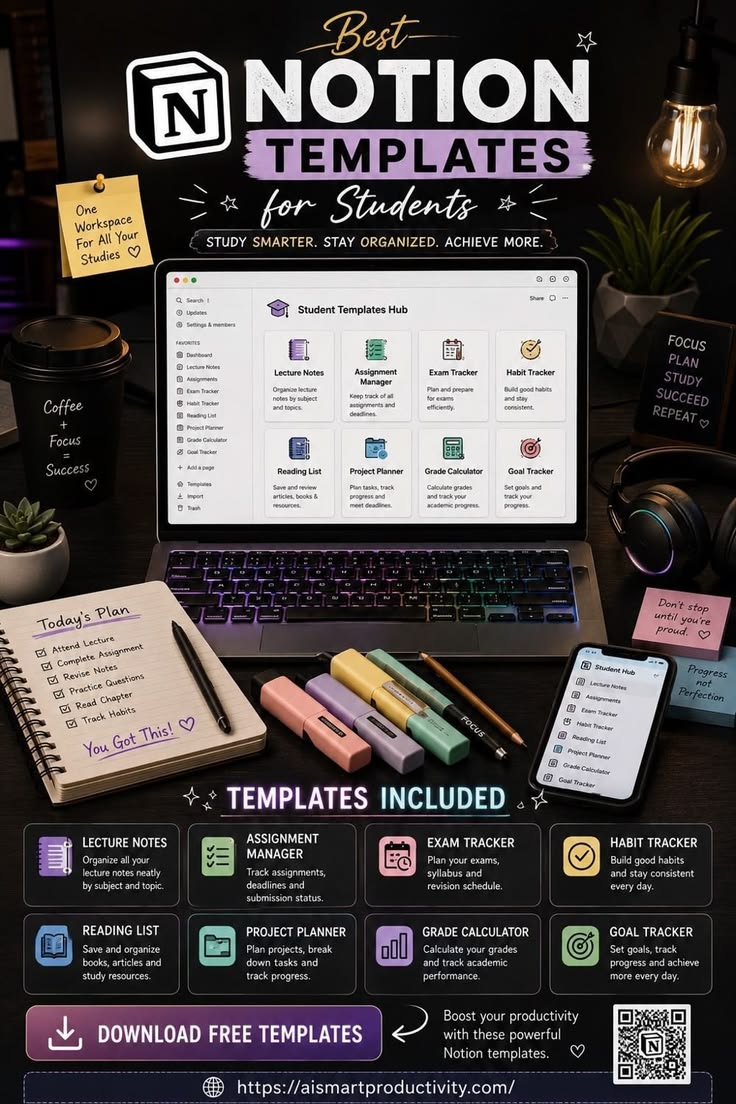
Managing lectures, assignments, exam preparation, habits, and reading lists can quickly become overwhelming for college and university students. Building a centralized “Student Templates Hub” in Notion brings structure to academic chaos by organizing coursework, trackable tasks, and study routines into a single digital system.
Below is a complete, step-by-step tutorial for creating the exact Student Templates Hub layout shown in the image, followed by an in-depth exploration of how digital organization enhances student focus and performance.
Part 1: Step-by-Step Guide to Building the “Student Templates Hub”
This tutorial walks through building the dashboard from scratch, including all 8 core sub-pages visible in the central hub: Lecture Notes, Assignment Manager, Exam Tracker, Habit Tracker, Reading List, Project Planner, Grade Calculator, and Goal Tracker.
Step 1: Set Up the Master Page (Dashboard)
Open Notion and click + Add a page in your left sidebar.
Title the main page “Student Templates Hub”.
Choose an icon (such as the graduation cap icon 🎓 shown in the laptop preview) and set a minimalist header cover if desired.
Click the
...menu in the top-right corner of Notion and toggle on Full width to maximize screen real estate.
Step 2: Build the Core Navigation Layout (Visual Grid)
To replicate the 8-card grid layout on the main dashboard screen:
On a new line, create a Callout block (
/callout) or a Gallery View database. For a quick visual grid with sub-page icons and descriptions:Type
/pageto create a sub-page for each section.Format the main hub using a 2-column or 4-column layout by dragging blocks side-by-side.
Structure the dashboard into two rows of four cards:
Row 1: Lecture Notes | Assignment Manager | Exam Tracker | Habit Tracker
Row 2: Reading List | Project Planner | Grade Calculator | Goal Tracker
Step 3: Configure the 8 Sub-Pages & Databases
1. Lecture Notes
Purpose: Organize notes neatly by subject, module, and topic.
Setup:
Create a sub-page named Lecture Notes.
Add an inline database (
/database inline) formatted as a Gallery View or Table View.Add the following properties:
Subject / Course (Select property: e.g., Biology, Economics, History)
Date (Date property)
Topic (Text property)
Status (Status property: Not Started, In Review, Mastered)
File Attachments (Files & media for PDF slides)
2. Assignment Manager
Purpose: Track assignments, deadlines, and submission statuses in real time.
Setup:
Create a sub-page named Assignment Manager.
Insert a Board View or Table View database.
Add the following properties:
Assignment Name (Title)
Course (Select property)
Due Date (Date property)
Status (Status property: To Do, In Progress, Submitted, Graded)
Priority (Select property: High, Medium, Low)
Create a filtered view on your main dashboard showing Assignments Due This Week.
3. Exam Tracker
Purpose: Plan exams, break down study syllabi, and set up spaced repetition schedules.
Setup:
Create a sub-page named Exam Tracker.
Build a database with columns for:
Exam Title (Title)
Subject (Select)
Exam Date (Date property)
Weighting (Number property: e.g., 30%)
Revision Status (Select: Not Started, 1st Review, 2nd Review, Mastered)
Topics Covered (Multi-select)
4. Habit Tracker
Purpose: Build positive daily study routines and maintain consistency throughout the semester.
Setup:
Create a sub-page named Habit Tracker.
Create a Table View database where each row is a day (e.g., Today’s Date).
Add Checkbox properties for key habits:
[ ]Attend Lectures[ ]Revise Notes (20 mins)[ ]Practice Questions[ ]Read Chapter[ ]Hydrate / Exercise
Use Notion formulas (
/formula) to calculate daily completion percentage.
5. Reading List
Purpose: Save and review academic papers, textbook chapters, articles, and supplementary books.
Setup:
Create a sub-page named Reading List.
Set up a Gallery View database displaying article covers or tags.
Properties to include:
Title / Resource (Title)
Author / Source (Text)
Category (Select: Textbook, Research Paper, Online Article)
Read Status (Status: To Read, Reading, Complete)
Key Takeaways (Text / Page Content)
6. Project Planner
Purpose: Plan major group projects, term papers, and research essays by breaking them into manageable sub-tasks.
Setup:
Create a sub-page named Project Planner.
Use a Timeline View or Kanban Board database.
Properties to include:
Project Name (Title)
Milestones / Phase (Select: Research, Outline, First Draft, Final Polish)
Assignee (Person property for group work)
Deadline (Date range property)
7. Grade Calculator
Purpose: Track academic performance and keep tabs on target GPAs across semesters.
Setup:
Create a sub-page named Grade Calculator.
Build a Table View database with formula capabilities.
Properties to include:
Course Name (Title)
Credits (Number property)
Grade Received (Number/Select)
Weighted Score (Formula property)
8. Goal Tracker
Purpose: Set academic, professional, and personal goals, then monitor progress over time.
Setup:
Create a sub-page named Goal Tracker.
Build a database with columns for:
Goal Name (Title)
Timeframe (Select: Semester 1, Full Year, Long-Term)
Target Metric (Text / Number)
Progress (Progress bar property or Formula)
Step 4: Add Sidebar Favorites and Dashboard Polish
Sidebar Navigation: Drag your core sub-pages or the main Student Templates Hub into Notion’s Favorites panel on the left sidebar for instant access from mobile or desktop.
Mobile Optimization: Since Notion automatically stacks horizontal columns into vertical blocks on mobile devices, test your setup on smartphone screens to ensure buttons and views remain clean and readable.
Part 2: Master Your Academic Life with Notion (SEO Article)
Target Keywords: Notion student template, best Notion setup for college, student productivity hub, digital study planner, organized college workflow.
Why Digital Workspaces Are Replacing Traditional Paper Planners
The modern college curriculum moves at an unprecedented pace. Between attending lectures, tracking multi-step assignments, preparing for midterms, and managing personal commitments, paper planners often fall short. Static notebooks cannot send deadline reminders, cross-reference reading lists with lecture notes, or dynamically adjust project timelines when schedules shift.
Enter Notion, a modular productivity application that acts as an customizable “all-in-one” operating system for academic life. By centralizing study schedules, coursework, and personal habits into a single, cohesive interface, students eliminate context-switching and build reliable systems for long-term success.
The Architecture of an High-Performing Student Workspace
A successful study system must address three primary challenges: information retention, task execution, and habit consistency. The Student Templates Hub addresses each challenge through tailored digital modules.
1. Academic Content Management: Lecture Notes & Reading Lists
The human brain is optimized for idea generation, not file storage. Storing lecture notes across multiple notebooks, desktop folders, and cloud drives leads to lost material right before finals.
By consolidating lecture summaries and reading assignments inside structured databases, you can:
Categorize notes by Subject, Semester, and Review Status.
Tag key concepts to generate dynamic flashcard views or revision topics.
Embed research papers, links, slides, and annotated PDFs directly inside topic pages.
2. Task & Deadline Execution: Assignment Manager, Project Planner, and Exam Tracker
Missed deadlines rarely result from a lack of effort—they usually stem from poor visibility. A fragmented list of assignment due dates scattered across course syllabi leads to last-minute cramming.
Combining an Assignment Manager, Project Planner, and Exam Tracker creates a complete pipeline for workload management:
Assignment Tracking: Visual Kanban boards categorize items by progress (To Do, In Progress, Submitted), letting you spot upcoming bottlenecks days in advance.
Project Decomposition: Large assignments, like term papers, are broken down into bite-sized sub-tasks (Outline, Draft, Citations, Proofread).
Spaced Repetition for Exams: Exam trackers allow students to log review sessions across multi-week intervals, ensuring material moves from short-term memory to long-term mastery.
3. Personal Maintenance & Growth: Habit Tracker, Goal Tracker, and Grade Calculator
Academic performance does not happen in a vacuum. Daily habits—sleep, active recall sessions, attendance, and health routines—directly inform test outcomes.
Habit Trackers maintain accountability through small daily check-ins.
Goal Trackers connect weekly effort to big-picture milestones, such as securing an internship or achieving a target GPA.
Grade Calculators provide real-time updates on academic standing, taking the guesswork out of final grade requirements.
Key Benefits of Centralizing Your Studies in Notion
Reduced Cognitive Load: Storing every deadline, requirement, and reading link in one central workspace frees up mental energy for high-level study and critical thinking.
Cross-Device Synchronization: Access your dashboard seamlessly across desktop, laptop, tablet, and mobile devices—making it easy to check tasks on the go or review notes before class.
Customizability: Unlike rigid third-party apps, Notion allows you to modify properties, databases, and visual layouts as your course requirements change over time.
How to Stay Consistent with Your Digital System
Building a Notion hub is only the first step; maintaining it daily ensures long-term results. Follow these simple practices to keep your system effective:
The Daily 5-Minute Check-in: Review your Today’s Plan list every morning to confirm top priorities for the day.
Weekly Reset: Every Sunday, clear out completed assignments, log recent grades, update project milestones, and organize new lecture notes.
Keep It Simple: Avoid over-complicating database formulas or visual aesthetics at the start. Build the basic tracking functions first, then refine design elements as you discover what works best for your workflow.